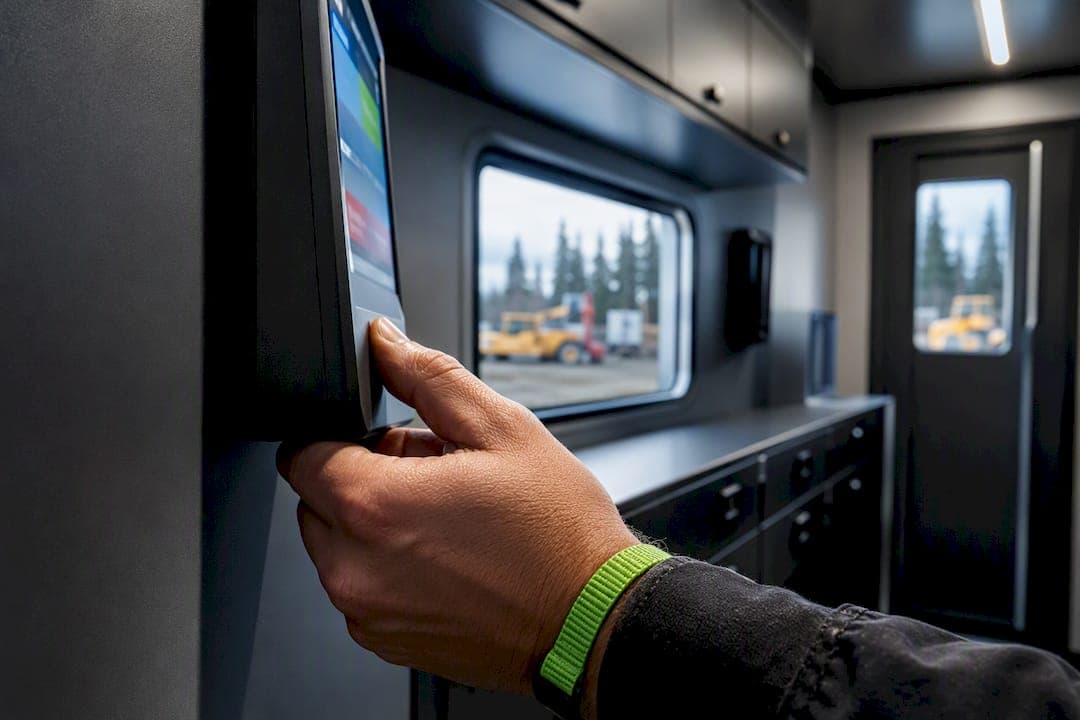
Offline time tracking records clock-ins, breaks, and notes on the device itself when there's no signal, then syncs everything automatically once the connection returns. It solves the biggest fear managers have about field or remote crews: lost hours. The one thing you still need to do is verify those offline entries before payroll runs, because syncing captures the data, but confirming it stays your job.
TL;DR:
- Reliable offline time tracking depends on automatic sync, audit logs, and GPS verification to prevent missed or inaccurate entries.
- Managers should verify that sync status indicators and failure alerts are actively monitored to catch delayed or failed uploads.
- Daily reconciliation routines are essential to confirm queued entries, review edits, and export payroll data with full audit trails.
- Offline tracking is critical for remote, field, or rural teams, especially during connectivity outages or in areas with poor cellular coverage.
- Heyhive offers an integrated system with GPS proof, manager approval workflows, and payroll-ready exports tailored for mobile and multi-site teams.
Table of Contents
- How offline time tracking works: local cache to synced record
- Key features managers should require in an offline-capable solution
- Accuracy, reconciliation, and compliance checks that hold up
- How to set up and verify offline tracking with your team
- When offline tracking is the right call for your team
- How Heyhive supports offline capture and payroll-ready records
- Manager perspective: flexibility with guardrails
- Heyhive: built for teams that need offline capture and GPS proof
- Sources
- FAQ
How offline time tracking works: local cache to synced record
Every offline-capable app runs on the same basic mechanic. When a worker's device loses signal, the app doesn't stop recording, it just stores the event where the phone can reach it.
- Local event cache: clock-ins, clock-outs, break timers, notes, and GPS snapshots are saved directly on the device.
- Queued sync: once the device reconnects, the app pushes the queued events to the server in the order they happened.
- Conflict resolution: if two records for the same worker overlap or contradict, most systems flag the entry for manager review rather than silently overwriting one.
- Delayed visibility: team dashboards, live presence indicators, and "who's clocked in now" views stay incomplete until the sync finishes, even though the underlying data was captured correctly offline.
Vendor product pages describe this exact flow as "offline mode": timestamps and GPS points are recorded locally and uploaded automatically once a connection is available. What matters for you as a manager is where to check that it worked. Look for a sync status indicator on the worker's timesheet, an admin log showing when each entry was uploaded, and a flag for anything still pending. If an entry sits queued for hours, that's your signal to check the device, not the payroll numbers.
Key features managers should require in an offline-capable solution
Offline capture alone isn't the differentiator anymore. Most tools can store a timestamp without a signal. What separates a reliable system from a risky one is what happens after the device reconnects, a point buyer guides like Zapier's time-tracking roundup keep coming back to when comparing sync reliability, GPS verification, and admin controls.
- Automatic, one-touch sync: the app should upload queued data the moment a connection is detected, with no manual trigger required from the worker.
- Editable entries with immutable audit logs: managers need to correct mistakes, but every edit should leave a timestamped trail showing who changed what and when.
- GPS-verified clock-ins and geofencing: for field teams, a location snapshot attached to each clock-in gives you evidence the person was actually on-site, even if the upload happened later. Heyhive's approach to GPS-verified clock-ins is a useful reference point for how this works in practice.
- Payroll-ready export formats: CSV or direct HRIS integration saves you from retyping hours, and it preserves the audit trail alongside the numbers.
- Offline-friendly UI and battery efficiency: an app that drains a phone's battery tracking GPS all day will get turned off by frustrated workers, which defeats the purpose.
- Sync-failure alerts: the system should tell you, not just the worker, when an upload has failed repeatedly.
Pro Tip: Set a rule that any offline entry unsynced for more than 24 hours triggers an automatic alert to the manager, not just the worker.
Accuracy, reconciliation, and compliance checks that hold up
Offline tracking solves data loss. It doesn't automatically solve accuracy, and it doesn't remove your legal responsibility for the numbers that end up on a paycheck.
Under the FLSA recordkeeping requirements, U.S. employers must maintain accurate records of hours worked. Software helps capture that data, but verifying it before it reaches payroll remains the employer's duty, not the app's. HR guidance generally recommends reviewing time entries daily rather than waiting until the end of the week, since end-of-week recall tends to produce rounded or approximated time blocks instead of accurate ones.
Build reconciliation into your routine with a short checklist:
- Confirm every queued entry from the previous day has synced.
- Spot-check edited entries against the audit log for unusual patterns.
- Export to payroll only after flags are cleared, not before.
Buyer guides consistently point to admin reconciliation tools and automated sync alerts as the features that most reduce unresolved payroll exceptions in offline deployments, according to Zapier's roundup of time-tracking apps. Watch for red flags: bulk backdated entries, repeated failed syncs from the same device, or a clock-in with no GPS evidence attached when one was expected. Any of those deserves a conversation before the hours get approved.
How to set up and verify offline tracking with your team
Getting offline tracking right starts before anyone clocks in for the first time.
- Check device prerequisites: confirm each worker's phone has enough storage, a charged battery, and location permissions enabled for the app.
- Enable offline mode: in the app's settings, confirm offline capture is switched on rather than assumed. Some apps default to online-only until you activate it.
- Walk workers through the offline flow: show them how to clock in without signal, add a note to an entry, and manually force a sync once they're back in range.
- Test a dry run: have one worker clock in and out in airplane mode, then confirm the entry appears correctly once reconnected.
- Set up server-side monitoring: as the manager, you should have a dashboard view showing pending syncs and failed uploads across the whole team, not just per device.
- Document the escalation path: if a sync fails repeatedly, workers should know to try a manual sync first, then check device permissions, before contacting an admin.
Most sync failures trace back to a handful of causes: storage limits, disabled background app refresh, or an outdated app version. Checking those first resolves the majority of stuck uploads before they become a payroll problem.
When offline tracking is the right call for your team
Offline tracking earns its place wherever connectivity is the exception, not the rule.
- Field service and construction crews working on sites with no reliable signal need local capture just to get an accurate timesheet at all.
- Remote-site and rural operations where cellular coverage is spotty benefit from GPS snapshots taken the moment a worker arrives, synced later.
- Event staff and traveling employees crossing time zones or working temporary venues often lose signal in ways that have nothing to do with their actual job performance.
- Temporary outage scenarios, like a warehouse Wi-Fi going down mid-shift, are exactly the cases offline caching was built to survive.
For a fully desk-based team with stable Wi-Fi, a simpler online-only tool may be enough. The moment your crew leaves reliable coverage regularly, though, you need offline capture paired with real audit and reconciliation tools, not just a basic app that stores a timestamp and hopes for the best.
How Heyhive supports offline capture and payroll-ready records
Offline resilience can be built into GPS Time Clocks, allowing field employees to clock in and out even without a live connection, with location data attached the moment it happens. That GPS verification gives evidence to check against, not just a timestamp to trust blindly.
On top of that, AI scheduling and manager approval workflows allow schedules and shift changes to stay in managers' control even as AI handles the heavy lifting, which cuts down the reconciliation work waiting after a sync. Payroll-Ready Hours exports can carry the audit trail with them, so verified hours move to payroll without a manual re-entry step.

Manager perspective: flexibility with guardrails
Offline tracking should never mean offline oversight. Give workers the freedom to clock in without signal, but pair it with a same-day review habit, audit logs you actually check and a rule that unsynced entries get flagged before they get paid.
— Heyhive
Heyhive: built for teams that need offline capture and GPS proof
If your crew works sites where signal drops without warning, Heyhive gives you the pieces this checklist calls for in one system instead of three separate tools.
- Offline-capable GPS Time Clock that records arrivals and departures even without a live connection.
- Manager approval on every schedule before it publishes, so AI Scheduling speeds up planning without taking away your final say.
- Payroll-Ready Hours exports that carry audit history with them, cutting the manual cleanup after a sync.
- Field Ops Check-In built for multi-site and mobile teams who need GPS verification as standard, not an add-on.
See how it fits your team at Useheyhive.
Sources
For recordkeeping obligations, see the FLSA recordkeeping fact sheet. For feature comparisons across offline-capable apps, see Zapier's time tracking roundup and Heyhive's guide to attendance tracking workflows.
FAQ
What happens to time data when a device goes offline?
The app stores clock-ins, breaks, and GPS snapshots locally on the device instead of losing them. Once the device reconnects, that data uploads automatically and appears in the manager's dashboard for review.
Is offline time tracking accurate enough for payroll?
It can be, but accuracy depends on daily verification, not just the sync itself. Under FLSA recordkeeping rules, employers remain responsible for confirming hours worked before they reach payroll, regardless of what software captured.
How does GPS verification help with offline clock-ins?
A GPS snapshot taken at the moment of clock-in gives managers location evidence to check GPS mileage accuracy against, even if the upload itself happened later. Field teams using GPS-verified time clocks get that proof automatically instead of relying on a worker's word.
What should I do if a worker's sync keeps failing?
First check device storage, battery, and background app permissions, since those cause most stuck uploads. If the problem continues, try a manual sync and review the app's sync-failure log before the entry reaches payroll.
Does Heyhive support offline clock-ins for field teams?
Some GPS Time Clock solutions capture clock-ins and location data even without a live connection, then sync automatically once the device reconnects. Payroll-Ready Hours exports can carry that audit trail forward, so verified hours may be ready for payroll without extra manual work.