Timesheet approvals are the formal process by which managers review, verify, and authorize employee time records before those hours flow into payroll or client billing. Done right, they prevent unauthorized overtime, catch data entry errors, and create the audit trail your organization needs for labor law compliance. Done poorly, they delay payroll, frustrate employees, and expose you to costly corrections.
Here is what an effective timesheet approval process covers:
- Payroll accuracy: Approved hours feed directly into payroll, so errors caught here never reach a paycheck.
- Billing integrity: Client invoices built on unapproved time risk disputes and revenue loss.
- Regulatory compliance: Federal and state labor laws, including the Fair Labor Standards Act, require accurate time records for hourly employees.
- Audit readiness: Timestamped approval records with user attribution satisfy internal and external auditors.
- Record security: Locking approved timesheets prevents retroactive edits that could distort financial reporting.
Supervisor approval and payroll sign-off are two distinct steps. Supervisor approval is a functional accuracy check. Payroll sign-off is the final administrative lock. Confusing the two is one of the most common sources of premature payroll processing errors.
How to set up timesheet approval settings and permissions
Getting configuration right from the start saves you from chasing approvals manually every pay period. A well-structured workflow moves from employee submission through managerial validation to payroll sign-off, with automated checkpoints at each stage.
- Enable the approval toggle. In your workforce platform's admin settings, locate the Time Tracking or Timesheets section and activate the Timesheet Approvals feature. Some platforms disable it by default.
- Define approval roles. Assign who can submit, review, approve, and edit timesheets. Options typically include organization admins, custom approver roles, or a dedicated Time Approver role with scoped permissions.
- Map employees to approvers. Link each team member to their direct manager or project lead. For employees working across multiple projects, configure multi-level routing so each project's hours reach the right approver.
- Set submission deadlines. A clear cut-off, typically end of business on Friday for weekly timesheets, removes ambiguity. Configure automated reminders at 24 hours and again at 2 hours before the deadline.
- Configure escalation rules. If a manager has not acted on a submitted timesheet within a defined window (commonly 48 hours), the system should automatically notify a secondary approver or HR administrator.
- Activate locking after approval. Set the platform to lock time entries once approved. Specify which roles, typically supervisors and account administrators, can unlock a record for correction.
- Restrict post-approval edits. Unless a user holds explicit edit permissions, approved timesheets should be read-only. This protects your audit trail.
Submitting and managing weekly timesheets effectively
The submission side of the workflow shapes how much review work lands on your desk. A clean submission process means fewer corrections and faster approvals.
- Standard submission cycle: Employees log hours daily and submit their completed timesheet at the end of the pay period. Weekly is the most common cadence in the United States.
- Withdrawal and resubmission: Employees who catch an error before you review it should be able to withdraw their submission, correct it, and resubmit. Most platforms support this without manager intervention.
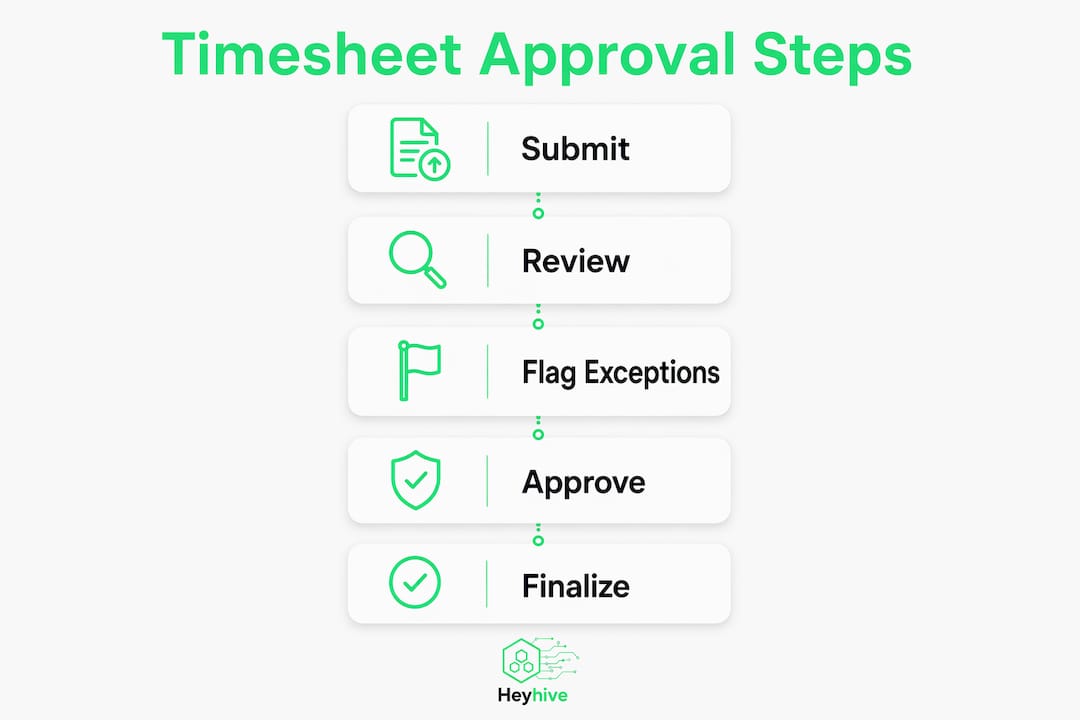
- Timesheet statuses: Every submission moves through defined states: Draft, Submitted (pending review), Approved, Rejected, and Locked. Tracking these statuses is what makes the workflow transparent and auditable.
- Automated notifications: Employees receive alerts when their timesheet is approved or rejected. You receive alerts when a submission is waiting for your review. Neither side should need to check manually.
- Handling exceptions: Flag entries that exceed daily hour limits or trigger overtime rules. Review those first rather than reading every line.
- Late submissions: Set a hard policy. If a timesheet arrives after the payroll cut-off, it may need to be processed in the next cycle. Communicate this clearly so employees understand the consequence.
Pro Tip: Set up a soft-restriction rule that prompts employees to confirm their submission when logged hours differ from their scheduled capacity. This catches honest mistakes before they reach your queue.
How to use the timesheet approvals interface to review, approve, or decline
Most modern platforms organize pending timesheets in an inbox-style view. Here is how to work through it efficiently.
- Navigate to the approvals page. Look for a dedicated Approvals tab or inbox within the Time section of your platform. The badge count shows how many submissions are waiting.
- Filter by status, employee, or project. Use available filters to prioritize. Sort by submission date to review the oldest entries first and avoid payroll delays.
- Review the summary view. Check columns for regular time, overtime, and total hours per employee. Look at the Status and Signature columns before opening individual records.
- Open individual timesheets when needed. For flagged entries or unusual totals, click into the detail view to see daily breakdowns and any attached notes.
- Approve in bulk or individually. Use Bulk Actions to approve all compliant timesheets at once. For entries that need closer review, approve them one at a time after inspection.
- Decline with a specific reason. When rejecting a timesheet, write a clear note explaining exactly what needs correction. The employee receives this reason, corrects the specific hours, and resubmits within the same system.
- Confirm the lock. Once approved, the status badge updates and the record locks automatically. Verify the lock is active before exporting to payroll.
Key interface features to use consistently:
- Audit log: Every approval, rejection, and edit is timestamped and attributed to a named user. Review this log if a dispute arises.
- Unapprove function: Only supervisors and administrators can unlock an approved timesheet. Use Bulk Actions to unapprove selected records, make corrections, and re-approve.
- Chain preview: In multi-level workflows, the interface shows who approves next, so you always know where a timesheet stands in the routing sequence.
Best practices for efficient, secure, and compliant timesheet approvals
Approving every time entry line by line is not realistic at scale. These practices help you maintain accuracy without spending your day in the approvals queue.
- Use exception-based reviewing. Focus your attention on entries flagged by automated rules, such as overtime thresholds, missing project codes, or hours that exceed daily capacity. Let compliant timesheets move through faster.
- Automate escalation. If you are unavailable, a secondary approver or HR administrator should receive the queue automatically rather than letting submissions stall. Configure fallback approvers for every route.
- Write specific rejection notes. Vague feedback like "please fix hours" forces a back-and-forth. A note like "Tuesday shows 10 hours but the site log shows 8, please correct and resubmit" gets resolved in one cycle.
- Lock approved records immediately. Approved timesheets should be read-only the moment you confirm them. Changes after approval require a formal re-open request, which is logged and attributed.
- Require employee sign-off before submission. Employee attestation via a mobile link lets workers acknowledge their hours are correct before you ever see the timesheet. This reduces disputes without requiring a full time-tracking app. Tools like CareTracker demonstrate how lightweight attestation workflows can work even for smaller teams.
- Enforce multi-level routing for complex teams. Matrix organizations where employees work across departments or projects need approval chains that route each project's hours to the relevant lead, not just the direct manager.
- Maintain audit-ready records. Every submission, edit, rejection, and approval should carry a timestamp and a user name. This is what satisfies labor law audits and internal compliance reviews.
- Integrate approvals directly with payroll. Platforms that connect approvals to payroll processing eliminate manual re-entry, which is the single largest source of payroll errors in teams using separate timesheet and payroll tools.
Pro Tip: Treat your approval configuration as a preventive audit. When rules flag cost overruns or unauthorized overtime before payroll runs, you avoid expensive corrections after the fact.
Common challenges during timesheet approvals and how to resolve them
Even well-configured workflows hit friction points. Knowing where they occur helps you fix them before they delay payroll.

Late or missing submissions are the most common problem. The fix is automated reminders at multiple points before the deadline, not a single Friday morning email. Pair reminders with a clear policy on what happens to late timesheets.
Approval bottlenecks occur when a single manager holds the queue. An employee going on leave without designating a backup can freeze an entire department's payroll. Escalation rules that trigger after 48 hours of inactivity solve this without requiring manual intervention.
Incorrect hours that slip through usually happen when approvers rubber-stamp submissions without reviewing flagged exceptions. Exception-based rules that surface anomalies automatically reduce this risk significantly.
Audit trail gaps appear when corrections happen outside the system, via email or verbal agreement, rather than through the platform's formal re-open workflow. Every change must go through the system to maintain a complete revision history.
Self-approval conflicts arise when approvers attempt to approve their own timesheets. Most platforms block this by default, but verify your configuration. Escalate self-submitted timesheets to a peer or administrator.
How timesheet approvals affect payroll accuracy and billing cycles
The approval step is where time data either becomes trustworthy or stays unreliable. Approved hours that flow directly into payroll processing eliminate the manual re-entry step that introduces errors in organizations using separate timesheet and payroll tools.

For payroll, the timeline matters as much as the accuracy. Most U.S. payroll processors require finalized, approved hours by a specific cut-off, often two business days before the pay date for direct deposit. If your approval cycle runs late, payroll runs late. Building your submission deadline and approval window backward from the payroll cut-off is the most reliable way to keep the cycle on schedule.
For client billing, unapproved time carries real financial risk. Hours that have not been reviewed and locked can be edited after an invoice goes out, creating a discrepancy between what you billed and what your records show. Locking timesheets at approval prevents this. Only approved, locked hours should feed into billing exports.
GPS-verified clock-ins add another layer of accuracy for field teams, confirming that logged hours reflect actual on-site presence before the approval review even begins. Pairing verified attendance data with a structured approval workflow gives you the confidence to approve quickly and the documentation to defend those approvals if challenged.
Key Takeaways
Effective timesheet approvals protect payroll accuracy, billing integrity, and compliance by combining structured workflows, automated rules, and locked records.
| Point | Details |
|---|---|
| Separate approval from payroll sign-off | Supervisor approval checks accuracy; payroll sign-off is the final administrative lock. Confusing them causes processing errors. |
| Automate reminders and escalations | Set deadline reminders and 48-hour escalation rules so approvals never stall due to manager absence. |
| Lock records immediately after approval | Approved timesheets must be read-only; any correction requires a formal re-open request that is audit-logged. |
| Use exception-based reviewing | Focus on flagged overtime and anomalies rather than reviewing every line entry manually. |
| Connect approvals directly to payroll | Platforms that sync approved hours to payroll eliminate manual re-entry, the primary source of payroll errors. |
Heyhive brings AI-powered workforce management to the full approval cycle, from GPS-verified clock-ins and real-time attendance tracking to payroll-ready hours export. You stay in control of every approval before hours move to payroll. See how Heyhive works for your team.